How to Fix Amazon Prime Video Black Screen Problems
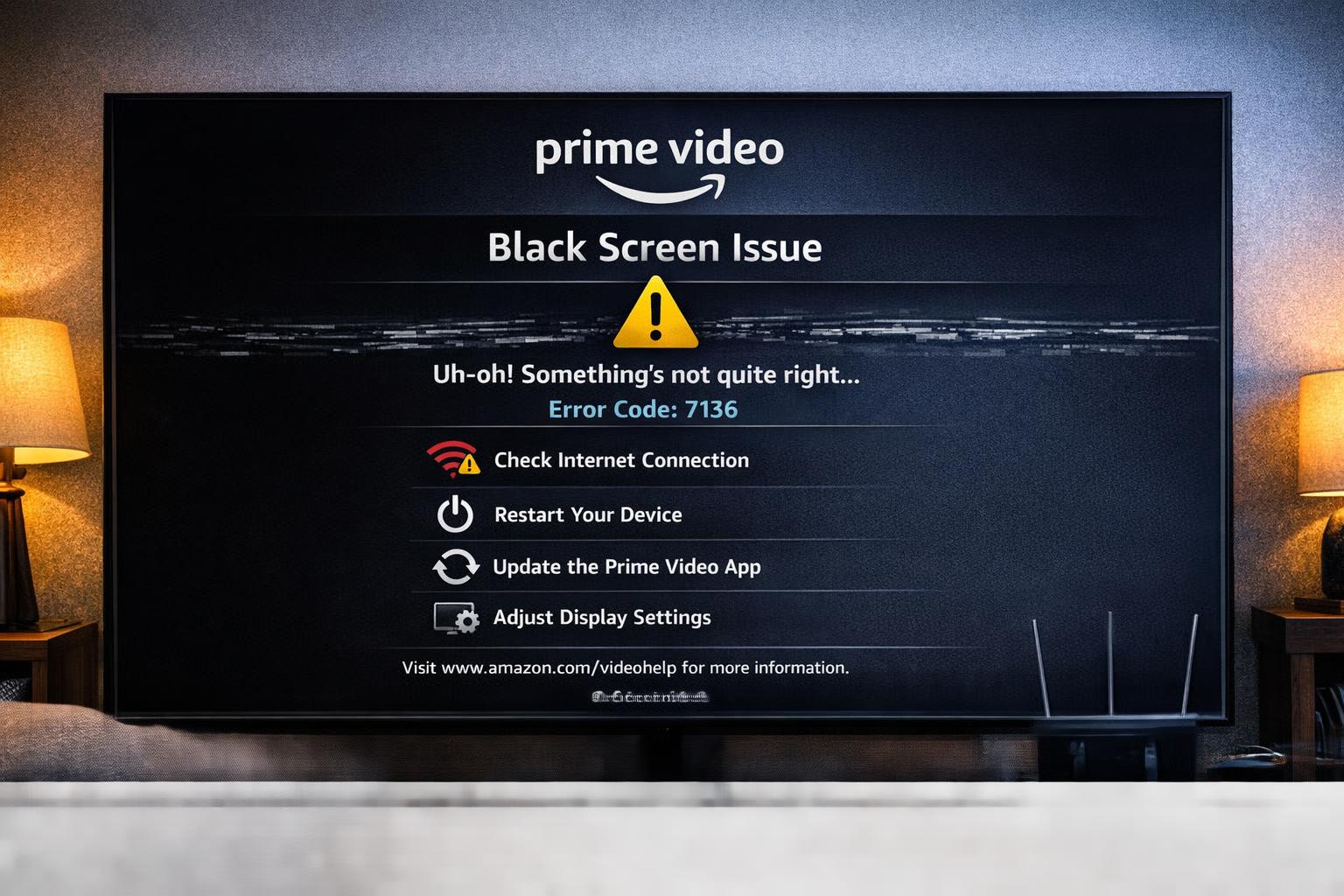
Watching your favorite movie or binge-watching a new series on Amazon Prime Video should be a smooth and enjoyable experience. However, sometimes users press play and are greeted by a black screen instead of the video. In some cases, you might still hear audio playing in the background, while in others the screen remains completely blank.
If you've experienced this issue, you're not alone. The Prime Video black screen problem is fairly common and can usually be fixed with a few simple troubleshooting steps.
In this guide from TvOttGuideStreamBlogs.com, we'll walk you through the most effective ways to resolve the Amazon Prime Video black screen issue on Smart TVs, streaming devices, computers, and mobile phones.
1. Restart the App or Refresh Your Browser
Sometimes the simplest fix works best. Temporary glitches or loading errors can cause playback problems.
- Smart TV or Streaming Device: Close the Prime Video app completely and open it again.
- Web Browser: Refresh the webpage or close and reopen the browser.
Restarting the app or page often removes minor bugs that may be interfering with video playback.
2. Check Your Internet Connection
A slow or unstable internet connection is one of the most common reasons for streaming issues.
- Test your internet speed using another device or application.
- Restart your modem or router to refresh the connection.
- If possible, connect your Smart TV or streaming device using a wired Ethernet cable for a more stable connection.
For smooth streaming, Amazon generally recommends at least 5 Mbps for HD content and 25 Mbps for 4K streaming.
3. Update the Prime Video App and Device Software
Using outdated software can sometimes cause compatibility problems or playback errors.
- Smart TVs or Streaming Devices: Check your settings for available firmware or system updates.
- Mobile Devices: Update the Prime Video app through the App Store (iOS) or Google Play Store (Android).
- Web Browsers: Ensure your browser is updated to the latest version.
Keeping your apps and device software updated can improve performance and fix bugs.
4. Clear App Cache and Stored Data
Over time, cached files can become corrupted and interfere with streaming performance.
- Android or Smart TV: Navigate to Settings → Apps → Prime Video → Clear Cache and Clear Data.
- Web Browser: Clear your browser's cookies and cache through the settings menu.
Keep in mind that clearing data may log you out of the app, so you may need to sign in again afterward.
5. Check HDMI Connections (For Streaming Devices)
If you're using a streaming device such as Amazon Fire Stick, Roku, or Apple TV, a loose or damaged HDMI connection may cause display issues.
- Make sure the HDMI cable is firmly connected to both the TV and the device.
- Try switching to a different HDMI port on your television.
- Replace the HDMI cable if it appears worn or faulty.
6. Disable Hardware Acceleration (For Browser Users)
Certain browser settings can occasionally cause display problems during streaming. For example, in Google Chrome:
- Go to Settings → System.
- Turn off "Use hardware acceleration when available."
- Restart your browser and try streaming again.
This adjustment can sometimes resolve playback issues related to graphics processing.
7. Test with Another Device or Browser
In some cases, the problem may be specific to a particular device or browser.
- Try streaming Prime Video using a different browser such as Firefox, Safari, or Microsoft Edge.
- Alternatively, watch the content on another device like a smartphone, tablet, or different TV.
This helps determine whether the issue is related to the device, browser, or application.
8. Sign Out and Sign Back Into Your Account
Occasionally, account sessions may become corrupted, leading to playback problems.
- Log out of your Amazon Prime Video account on the affected device.
- Close the app or browser completely.
- Sign back in and try playing the video again.
9. Disable VPN or Proxy Services
Amazon Prime Video may block or restrict playback if it detects a VPN or proxy connection.
- Turn off any VPN or proxy service currently running on your device.
- Restart the Prime Video app or browser and try streaming again.
10. Reinstall the Prime Video App
If the problem continues, reinstalling the app can often resolve persistent issues.
- Uninstall the Prime Video app from your device.
- Restart your device.
- Download and reinstall the app from the official app store.
- Sign in to your Amazon account again.
This ensures a clean installation without corrupted files.
11. Contact Amazon Customer Support
If none of the above solutions work, it may be best to contact Amazon Prime Video customer support. When contacting support, provide the following details:
- The type and model of the device you're using.
- A clear description of the issue.
- Any error codes or messages displayed.
Support representatives can help diagnose the problem or escalate it if it's related to an account or server-side issue.
Final Thoughts
Encountering a black screen on Amazon Prime Video can be frustrating, but most of the time the issue can be resolved quickly. Whether the cause is a weak internet connection, outdated software, or app settings, the troubleshooting steps above should help restore normal playback.
Follow these tips and you should be able to get back to enjoying your favorite shows and movies without interruption.
If you're experiencing other Prime Video problems, feel free to explore more troubleshooting guides on TvOttGuideStreamBlogs.com for additional help and solutions.
Back to All Articles